
The digital nomad lifestyle is picking up speed among educators who love teaching but aren’t tied to a single classroom. Whether you’re running online workshops, creating digital courses, or tutoring students halfway across the world, the right tech stack can make remote education efficient, flexible, and even fun.
Having spent the last few years working from everywhere from busy city cafés to quiet mountain stays, I’ve collected a list of digital tools that help me and many other remote educators stay on track wherever we land.
Remote education has cracked open a world of possibilities for teachers who want to travel, set their own schedules, or simply work from wherever feels inspiring. Instead of being limited by classroom walls, I can now teach from anywhere with good Wi-Fi, and connect with learners across time zones. As awesome as this lifestyle can be, it does rely on having the right combination of hardware, software, and workflow habits.
My goal in this article is to help fellow remote educators, whether you’re thinking about going fully mobile or already living the digital nomad dream, figure out which tech essentials will make remote teaching and learning smoother, more effective, and much less stressful.
Key Takeaways
- Reliable connectivity, secure backups, and mobilefriendly devices are non-negotiable for remote educators.
- Choosing tools that support collaboration, engagement, and easy content sharing helps students feel more connected, even from a distance.
- Cloud storage, smart accessories, and tech that works even when Wi-Fi is spotty keep your lessons running on the road.
- A streamlined workflow reduces burnout and frees up time for the coolest part of nomad life: exploring new places.
TL;DR
If you want to teach remotely while traveling, focus on versatile hardware, strong internet solutions, cloudbased apps, and reliable tools for communication, classroom management, and security. A bit of smart setup on your end saves massive headaches later.
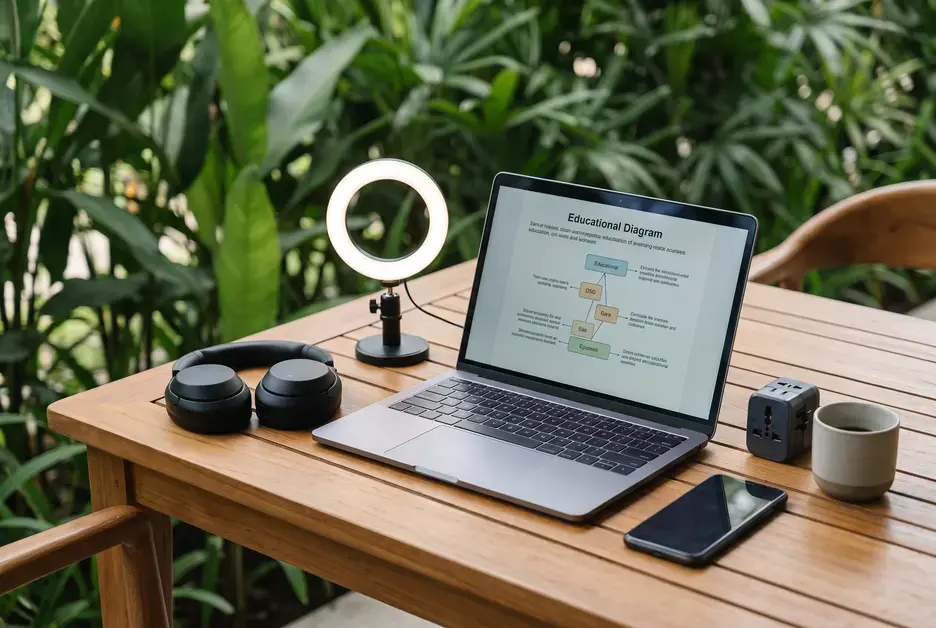
Must-Have Devices for the Digital Nomad Educator
The basics of my tech stack stay pretty consistent, but device choices depend a bit on how you like to work and the kind of teaching you do. If you’re thinking about what should always make it into your travel bag, here’s my quick rundown with some bonus pro tips:
- Laptop or Tablet: I use a lightweight laptop for full control and multitasking, but some educators swear by powerful tablets with keyboard cases. Tablets can be especially handy for those who primarily teach younger students with interactive apps. Try to pick a device with all-day battery life and a sturdy build, since replacement options might be limited in rural or remote areas.
- Smartphone: For quick communication, hot-spotting, checking attendance, or even teaching on the go if something urgent pops up. Consider downloading different education platforms’ mobile apps so you can keep up with grading or student questions even from your phone.
- NoiseCanceling Headphones or Earbuds: Useful for blocking out café or coworking space noise while you run lessons or participate in faculty meetings. Wireless earbuds also come in handy for unobtrusive listening during long travel days.
- Portable Mouse and Keyboard: I find these a lifesaver for ergonomics during longer work sessions, especially if your workspace setup keeps changing. Bluetooth versions help minimize cables and mess, streamlining your setup across locations.
- External Webcam and Microphone: Builtins are fine for casual meetings, but better gear gives your students clearer audio and video. This is important for connection and understanding, especially in large or interactive classes. If you record asynchronous content, a good microphone makes editing much easier.
- Power Bank and Universal Adapter: Some areas have unpredictable power. A robust portable battery and an allinone adapter keep my tech reliable for those essential class hours. Some multiport power banks can charge more than one device at once, which is a big help if you’re juggling phones, tablets, and laptops on the move.
Internet Solutions for Reliability Anywhere
Connectivity is everything in remote teaching. Losing your Wi-Fi in the middle of a lesson isn’t just awkward; it can seriously mess with student trust and your worklife balance. Here are some options I keep handy to stay online and stressfree:
- Mobile Hotspot: Many digital educators use unlocked mobile hotspot devices with international data SIMs. Investing in a quality hotspot is wise if you travel often across borders. It offers more stable connections than relying solely on hotel or café Wi-Fi, and often supports multiple devices at once.
- Phone Hotspot: Modern smartphones do a good job as an emergency backup. Always check your carrier’s roaming and data policies before using this feature abroad, since unexpected charges can add up quickly.
- Local SIMs or eSIMs: I always pick up a new SIM or use an app like Airalo or Holafly when moving to a new country, especially for affordable, highdata plans. eSIMs are particularly convenient; you don’t have to fiddle with tiny cards and can activate data plans instantly from your device.
- Wi-Fi Analyzer Apps: Tools like NetSpot or simple speed test sites help check if a spot has enough bandwidth for smooth screen shares and video calls before committing to a new workspace. Some apps also let you map signal strength, which is helpful if you need to pick the best spot in a big coworking space or hostel.
Additionally, many educators also keep a short list of reliable coworking spaces or cafés in each city they visit, in case connectivity at their accommodation falls short. Having a couple of backups reduces stress and ensures you never miss a critical class or meeting due to a flaky connection.
Cloud Tools and Productivity Apps for Remote Lesson Planning
With everything in the cloud, lost devices or travel hiccups don’t ruin your class schedule or materials. Here’s what I rely on for lesson design and day-to-day management:
- Cloud Storage: Google Drive, Dropbox, or OneDrive to store lesson plans, digital textbooks, and student work. I set these to autosync on Wi-Fi only to save mobile data and avoid surprise bills.
- Collaborative Docs and Slides: Google Workspace is my default, but Microsoft 365 is a solid alternative. Shared documents and slides make it easy to update materials with coteachers or students around the globe. These also let students work together in real time—no need to wait for email chains.
- ToDo Lists and Task Managers: Trello, Notion, or Todoist help you stay organized, with boards or lists dedicated to class planning, grading deadlines, and travel logistics. Adding colorcoded labels for urgency or topic makes it easier to find what you need at a glance.
- Calendar Apps: Google Calendar syncs with your phone and laptop so nothing falls through the cracks. I set up different calendars for work, travel, personal appointments, and sometimes even student groups to keep things sorted and easy to read.
Extra tip: For peace of mind, enable version histories and offline access on your main projects. This lets you access files and keep working even during patchy Wi-Fi, then autosync updates when you’re back online.
Classroom Management and Engagement Platforms
Keeping classes engaging and organized can be tricky at a distance. I’ve tried a bunch of different tools but have settled on a core set that fit almost any online classroom setup:
- Learning Management Systems (LMS): Moodle, Canvas, and Google Classroom are always worth checking out. These help with assignment handoffs, grading, and keeping parents in the loop if needed. Most offer flexible modules to customize your course and automate busywork.
- Interactive Learning Apps: Padlet for collaborative brainstorming, Kahoot! and Quizizz for quiz games, and Flip (formerly Flipgrid) for video-based discussions all help keep things fun and interactive. These platforms are free or offer robust trial tiers, so you can experiment before settling on the best fit for your students.
- Video Conferencing: Zoom is still king for classes, but Google Meet and Microsoft Teams are both reliable. You can also use Whereby for quick, loginfree meetings, especially for short checkins with parents or colleagues.
- Whiteboard Tools: Miro, Whiteboardfi, and Jamboard fill the gap for interactive notetaking and brainstorming sessions. These offer templates for mind maps, timelines, and other creative ways to illustrate concepts together in real time.
Don’t forget to train students on these platforms early in the term; a quick walkthrough or screen recording helps everyone get comfortable, no matter where they’re logging in from.
Communication, Scheduling, and Feedback Tools
Remote teaching can feel isolating without good channels for communication. To make sure both you and your students feel heard, I keep these handy tools in regular use, along with some strategies to boost communication quality:
- Email Management: Gmail with add-ons like Boomerang for scheduling messages ahead of different time zones eliminates late-night stress and helps with prompt replies.
- Messaging Platforms: Slack and Discord both work for quick checkins or longer discussions. WhatsApp or Telegram are great for student groups who prefer chatbased updates. Setting up topic-based channels or groups cuts down on clutter and keeps conversations relevant.
- Feedback Tools: Loom for video feedback (super helpful for personal touch), and Kaizena for leaving audio feedback directly on assignments. These approaches often feel more meaningful to students than typed comments alone.
- Online Booking/Scheduling: Calendly and YouCanBookMe let students book office hours or meetings without lots of back-and-forth emails, and you can set office hours to update automatically based on your current timezone.
Even with all this tech, don’t underestimate the value of a quick personal email or checkin. Regular, informal communication encourages students to reach out early if they run into problems.
Security and Backup
When you’re teaching remotely, especially if you’re carrying student data, security shoots up the list of priorities. Here’s my basic security checklist for safe digital teaching while traveling:
- VPN: Protects your data on public networks. NordVPN, ExpressVPN, and ProtonVPN are all reliable and work in most countries. For best results, connect before logging in to any teaching or storage platforms.
- Password Managers: LastPass or 1Password make wrangling multiple logins easier (and safer). They also help you generate strong, unique passwords for every platform.
- TwoFactor Authentication: Apps like Google Authenticator and Authy add a simple layer of security on key accounts. Set this up on both your devices, so you can still access services if one device is lost.
- Regular Backups: I back up important files to an external SSD drive every couple of days, and keep sensitive lesson or student stuff encrypted just in case. Cloud services with version history help recover lost or overwritten files, too.
It’s smart to keep a printed sheet with emergency contact info and device serial numbers in your luggage, in case your tech goes missing and you need to file a report or warranty claim quickly while abroad.
Accessories and Gadgets That Make Life Easier
When space and weight are limited, accessories need to earn their keep. Here are a few extras I recommend to smooth the way for mobile educators, especially during long stints on the road:
- Portable Laptop Stand: Saves my neck during long lessons. Foldable models fit inside any bag and improve airflow, keeping devices cool.
- USB Hub: For connecting camera, mic, and flash drive all at once off a single laptop port. Look for lightweight versions with multiple types of ports for maximum flexibility.
- Compact Ring Light: Lighting can really give a boost to video quality, and a small ring light doesn’t take much space in your bag. Some models clip right onto your laptop for a quick, professional look.
- Multicharging Cable: I use a 3in1 cable to keep all my devices topped off without digging around for the right cord. Combined with a fast charging block, this setup works in hotels, airports, or campsites without missing a beat.
Small details like cable organizers, lightweight extension cords, or even a microfiber cloth for your screen can make life a lot easier as you switch up work environments.
Sample Weekly Workflow
This is a simplified version of my typical mobile workflow as a digital nomad educator. Your schedule might look different, but having a rhythm helps manage time zones and workloads:
| Day | Focus | Main Tools |
|---|---|---|
| Monday | Lesson Prep & Content Uploads | Google Docs, Canva, Dropbox |
| Tuesday | Live Classes & Q/A Hours | Zoom, Slack, Miro |
| Wednesday | Student Feedback & Grading | Google Classroom, Loom, Kaizena |
| Thursday | Community Engagement | Padlet, Telegram, Email |
| Friday | Professional Development & Review | Notion, Trello, LinkedIn Learning |
On weekends, I often scout new places to work from or catch up on personal creative projects. Taking regular breaks to explore new locations gives me a burst of energy and fresh ideas for lessons.
Reflection Questions
- Which hardware or app do you find most reliable for mobile lesson delivery?
- How do you keep up with student feedback and grading on the road?
- Do you have a backup plan for internet outages or device failure?
- How do you foster engagement and connection with remote learners?
- What new tools or hacks have made remote teaching easier for you?
Frequently Asked Questions
1. What is the most important part of a digital nomad educator’s tech stack?
The most important thing is reliable connectivity. If your internet is stable, everything else falls into place much more easily. I suggest having at least two ways to connect, like a hotspot and a SIM, wherever you go.
2. How can remote educators secure student data while traveling internationally?
Basic steps include using strong passwords, enabling twofactor authentication, and a good VPN. Regular backups and staying within secure platforms, like your LMS or encrypted cloud storage, keep things safe as you move.
3. What tools help with student engagement across time zones?
Asynchronous tools like Google Classroom, Padlet, and Loom let students participate or receive feedback no matter their local time. Live classes are still possible. Just schedule them at times with the most overlap or record them for playback.
4. How do you manage lesson planning and grading from different locations?
Cloud apps like Google Drive, Notion, or Trello help keep things organized. I keep grading rubrics or lesson templates synced in the cloud and accessible from both laptop and mobile devices, so even if I’m in a new city, I can get work done with just Wi-Fi or mobile data.
5. What laptop features should digital nomad educators prioritize?
Look for a lightweight laptop with long battery life, a reliable keyboard, and enough RAM to run your teaching apps. Having at least one USBC port and a good webcam are both pretty handy for remote teaching. It’s wise to check if your laptop is easy to repair or service abroad, just in case.
Conclusion
Building a digital nomad tech stack for remote education is about picking gear and apps that hold up in busy airports or quiet cabins, and make teaching on the go both smooth and rewarding. With a solid plan for backup, communication, workflow, and security, teaching from the road becomes a lot less stressful and a lot more fun. If you’re setting up your own remote classroom for the first time, take it slow, test your stack in low-pressure settings, and tweak as you track down what fits your teaching style best.
And if you want to know what’s happening in my world as a writer and digital nomad/remote worker, check out my Wealthy Affiliate blog page here: https://my.wealthyaffiliate.com/johnmaluth/blog.