
Most cloud storage reviews get written from a desk, on fibre, with a full signal and nowhere to be. The reviewer opens five apps, uploads a test file, times it, and ranks everyone by storage tiers and monthly price. None of that tells you what happens when you’re trying to sync a client folder on a 2Mbps hostel connection in Juba or open a contract on a bus with zero bars or log in to grab an invoice on airport Wi-Fi that fifty other people are also hammering.
This is a ranking built around those moments instead. Not which service has the biggest free tier. Which one still works when the internet doesn’t.
Why Cloud Storage Breaks Down the Moment You Leave Your Desk

Cloud storage is designed and tested against a stable connection. The engineers building Dropbox or Google Drive assume you’re on an office network or decent home broadband most of the time, because most of their users are. The sync engine, the conflict resolution, the upload retry logic, all of it is tuned for brief dropouts, not for hours of patchy 3G or wifi that disconnects every few minutes.
A digital nomad’s connection does not behave like that. You might have strong wifi in a co-working space in the morning, a weak hostel signal shared with forty other guests in the evening, and nothing at all on a long bus or train ride in between. The file that synced cleanly at the co-working space is the same file that gets stuck “uploading” for six hours at the hostel, or shows a conflict warning when you finally get signal again because two devices tried to save different versions while offline.
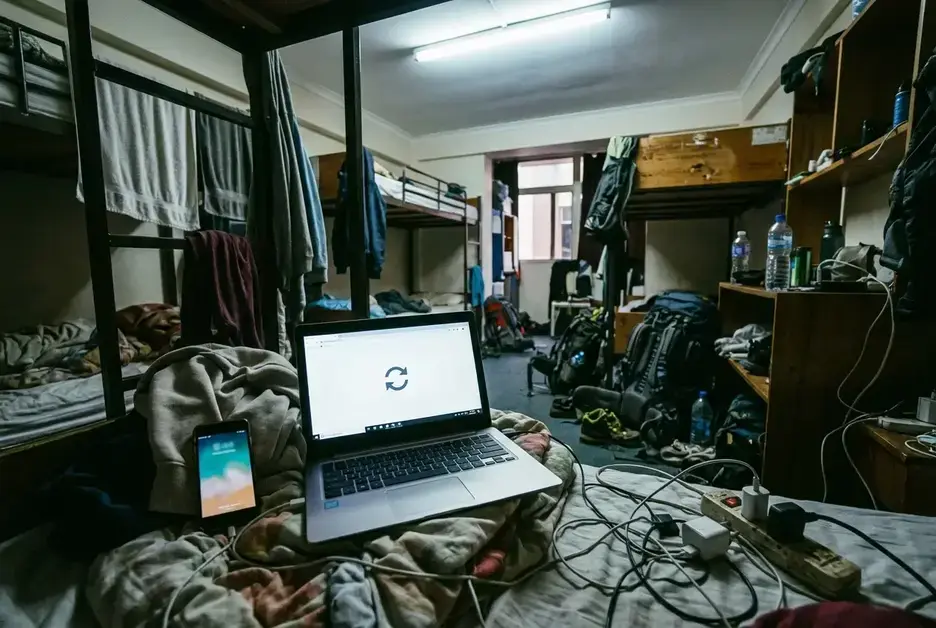
This is the gap most reviews miss. The question isn’t whether a service can hold your files. They all can. The question is whether it can pick up cleanly after a bad connection, without losing work or duplicating folders or forcing you to re-upload everything from scratch.
What I Actually Test on the Road: Security, Sync Speed and Offline Access
Three things matter more than storage limits once you’re actually traveling with client work on the line.
Does it survive a dropped connection mid-upload. A good sync client picks up where it left off. A bad one restarts the whole file, which on a slow connection can mean the difference between finishing in ten minutes or never finishing at all.
Can you open files with no connection whatsoever. This is the one that catches people out. You assume your files are “in the cloud” and therefore safe and available, until you’re on a long-haul bus with no signal and you need a document that only exists as a cloud link with nothing stored locally.
Does it protect client work on networks you don’t control. Hostel wifi, airport wifi and café wifi are all networks shared with strangers, some of whom are actively looking for unencrypted traffic to intercept. If you’re carrying client contracts, invoices or anything under an NDA, the storage app’s security behaviour on open networks matters as much as its sync speed.
I weigh every service against these three before I look at price or storage size, because a cheap plan that loses a file on a bad connection in Malakal is not actually cheap.
How Each Service Holds Up on Airport, Hostel and Train Wifi
Dropbox tends to handle flaky connections better than most, largely because of how it syncs. Rather than re-uploading an entire file every time it changes, it only sends the changed blocks of data, so a small edit to a large document doesn’t mean waiting for the whole thing to upload again on a slow connection. On genuinely weak wifi, that difference is the gap between a sync finishing before you have to pack up and leave, and one that’s still crawling along an hour later.
Google Drive is reliable when the connection is decent but noticeably slower to recover after a drop. If you lose signal mid-sync, it’s more likely to restart the transfer than resume it cleanly, which on a 2Mbps hostel connection can mean watching the same upload bar crawl from zero more than once. It’s fine for documents and spreadsheets you’re editing directly in the browser, less fine for large files you need synced reliably in the background.
OneDrive behaves similarly to Google Drive on weak connections, with the advantage that its “Files On-Demand” feature lets you see your whole folder structure without having every file taking up space on your device. That’s useful for travel, since it means a smaller hard drive doesn’t force a choice between which folders to carry with you.
pCloud holds up well on patchy connections and has the advantage of a genuinely useful offline folder structure, which matters more than people expect until they’re relying on it.
Sync.com is slower on the initial sync of large folders but behaves consistently once files are up, which some travelers prefer over a service that’s fast when things are good and unpredictable when things aren’t.
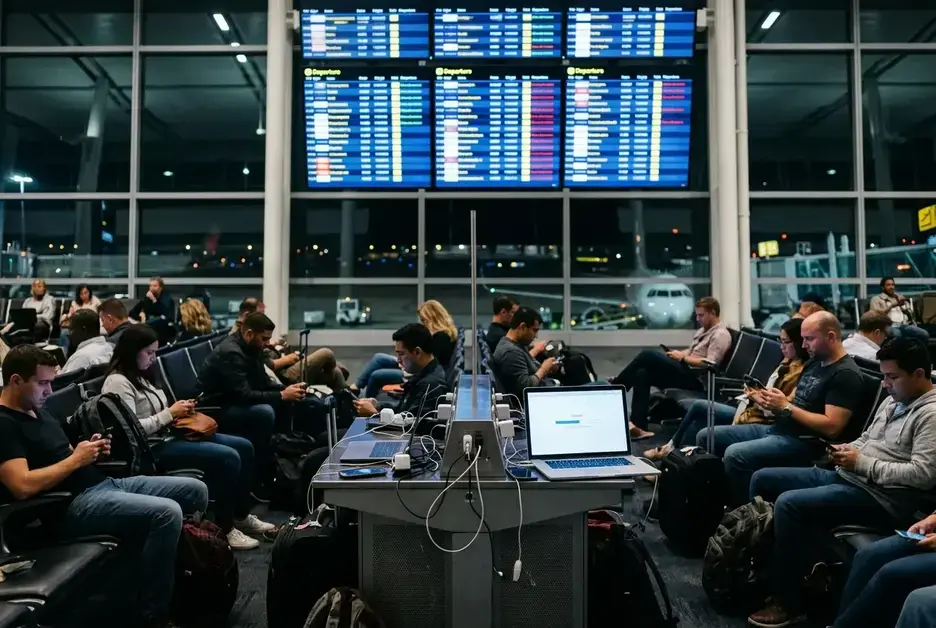
None of this is to say one of these will never fail you. Every service has, at some point, left someone staring at a spinning upload icon in a departure lounge. The point is that some of them recover from a bad connection with the file intact, and some of them make you start over, and that difference only shows up once you’re actually testing it on the road rather than on a desk with fibre.
Offline Access: Opening Your Files When There’s No Signal at All
This is the section most reviews skip entirely, and it’s the one that matters most when you’re actually traveling.
Cloud storage, by default, is not offline storage. If a file exists only in the cloud and you haven’t explicitly told your device to keep a local copy, you will not be able to open it without a connection. That sounds obvious written down, but it catches people constantly, usually at the worst moment: a long bus ride, a flight with no wifi, a remote area with no signal at all, the exact moment you need a document and have zero way to get it.
The fix is the same across most services: mark the folders you actually need, not your entire drive, for offline or local access before you leave wifi behind. Dropbox calls this “available offline.” Google Drive has an offline setting per file. OneDrive’s Files On-Demand lets you pin specific folders to always keep local copies. pCloud has a dedicated offline folder built for exactly this.
The habit that actually works is doing this the night before a travel day, not the morning of. Pick the folders you’ll realistically need, client contracts, tickets, anything you might have to send or show someone, and pin them locally while you still have a connection to pull them down. Trying to mark files for offline access after you’ve already lost signal does nothing, because the files aren’t on your device yet.
It’s worth building this into a routine rather than remembering it case by case. For example, you can describe how you personally check this before a travel day, e.g., the evening ritual of pinning folders before a bus or flight. A five-minute check the night before a travel day has saved more documents than any storage tier upgrade ever has.
Security Habits That Matter More Than Which App You Pick
The app you choose matters less than what you do around it. Most of the actual risk to client work on the road comes from habits, not software.
Two-factor authentication on every account. Not just the cloud storage itself, the email account tied to it too. A password alone is not enough protection on a device that might get lost, stolen, or left unlocked in a hostel common room.
A VPN on any network you don’t control. Airport wifi, hostel wifi, café wifi, all of it is shared with strangers. A VPN encrypts your traffic so that someone else on the same network can’t see what you’re sending, which matters a great deal more when what you’re sending is a client’s financial documents than when it’s a podcast you’re streaming.
Full device encryption. Most laptops and phones support this natively now, and it costs nothing to turn on. If a device gets lost or stolen, encryption is the difference between a lost laptop and a lost laptop plus every client file on it being readable by whoever finds it.
A separate, dedicated work account where possible. Mixing personal photos and client contracts in the same cloud folder structure is how things get shared by accident, or get caught up in a sync conflict that shouldn’t have touched client work at all.
Never auto-connect to open networks. Most phones and laptops default to joining known network names automatically. Turn that off. A network at an airport called “Free Airport WiFi” is trivially easy for someone else to spoof.
None of these take more than a few minutes to set up once, and all of them do more for your actual security than switching from one storage provider to another. The app matters. The habits around the app matter more.
Where Cloud Storage Fits in Your Wider Remote Tech Stack
Cloud storage is one piece of a setup that needs to hold together as a whole, not a tool you pick in isolation. A sync service that handles bad wifi well is only useful if the rest of your stack, your VPN, your password manager, your backup routine, your task management, is built with the same travel conditions in mind.
If you haven’t audited the rest of that stack recently, it’s worth a proper look rather than patching things as they break on the road. Essential Technology Skills For Remote Workers goes through the broader setup that cloud storage needs to sit inside, from connectivity basics to the tools that keep work moving when conditions aren’t ideal.
Getting the storage right and leaving the rest of the stack unexamined is a common mistake. A good sync service paired with a weak VPN, or a strong backup routine with no two-factor authentication, still leaves a real gap. Treat this as one piece of a system, not the whole system.
My Pick for Full-Time Travelers and Why I Switched
After testing these across enough bad connections, Dropbox is what I run day to day, specifically because of how it behaves when things go wrong rather than when things go right. The block-level sync means a dropped connection costs minutes, not hours, and the offline folder marking is straightforward enough that I actually use it consistently instead of only remembering after I’ve lost a file.
[Add the specific trip or moment that pushed you to switch, the connection that failed and what it cost you, or the file you nearly lost.] That’s the kind of experience that actually changes which app you trust, far more than a comparison chart of storage tiers ever could.
It isn’t the cheapest option, and it isn’t the one with the most free storage. It’s the one that has, in practice, recovered cleanly from the kind of conditions this whole piece is built around: hostel wifi that drops every ten minutes, airport wifi shared with a full terminal, train wifi that exists in name only. For anyone doing client work on the road, that reliability is worth more than a bigger free tier sitting unused on a service that chokes the moment the connection gets bad.
Pick based on how a service behaves at its worst, not its best. Your desk-fibre test tells you nothing about the bus with no signal. The hostel wifi will.
If you want the exact settings I run on every device before I leave for a new country, grab my free Nomad Cloud Backup Checklist by joining the email list.