
Online work also known as remote work, demands stability long before it measures technical talent. When a client hires a remote professional, they evaluate reliability: audio clarity, prompt attendance, seamless file delivery, and uninterrupted screen sharing. A computer that freezes during critical meetings destroys professional trust immediately.
For tech-savvy seniors entering the remote workforce, converting a personal computer into a dependable workstation requires deliberate preparation. Seniors bring decades of professional discipline, wisdom, and work ethic to the global economy. However, technical friction can undermine that value if hardware and software are improperly configured.
Globally, nations approach digital inclusion for older generations differently. The United States relies primarily on private technology markets and self-directed adult education, forcing seniors to navigate commercial software choices independently. China implements government-directed digital literacy programs alongside public infrastructure development to integrate older citizens into digital services.
In South Sudan and across Africa, where digital job initiatives are expanding rapidly, senior citizens and experienced workers leverage mobile technology and satellite connectivity to participate in remote commerce despite regional infrastructure variations. Building a stable laptop workstation allows seniors everywhere to share their accumulated expertise with global employers.
Key Takeaways
- Predictability First: A clean, optimized operating system prevents system crashes during important client calls.
- Global Structural Approaches: Western markets favor self-managed tech setups, Chinese policy drives public digital integration, while African professionals build resilient workspaces adapted to local power conditions.
- Security and Separation: Creating dedicated work user profiles and implementing password management protects personal and professional data.
- Maintenance Discipline: Establishing regular update and backup routines maintains device performance over time.
TL;DR
Configuring a laptop for online employment requires system optimization, dedicated user profiles, security protocols, and reliable backup systems. By contrasting how Western commercial markets, Chinese state-backed digital programs, and African remote work hubs approach technical readiness, tech-savvy seniors can create dependable workstations that turn their decades of professional experience into successful online careers.
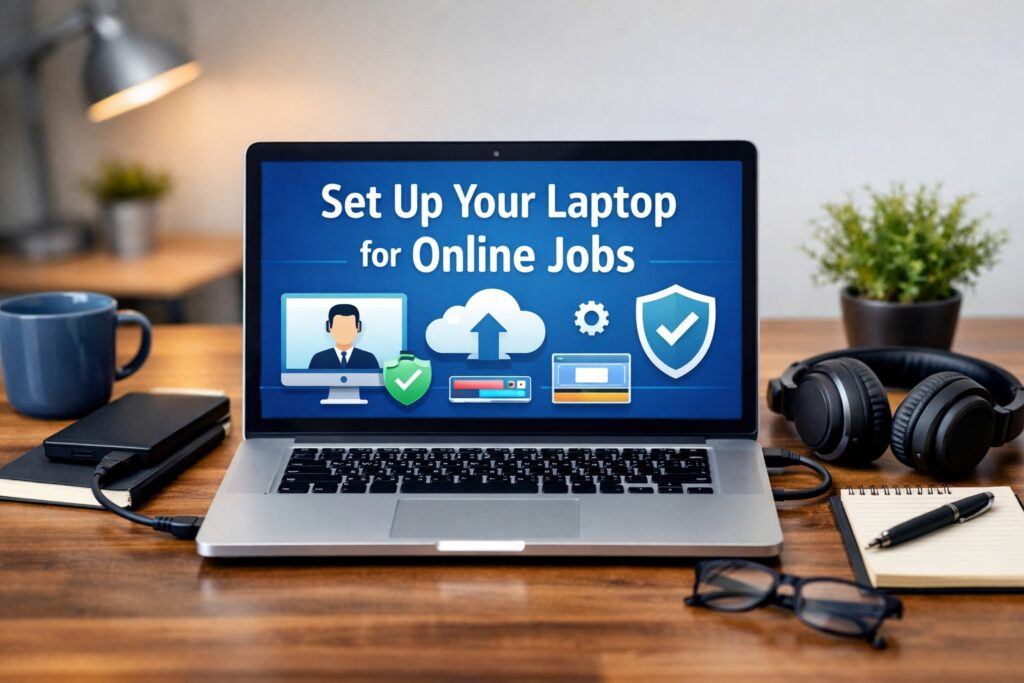
The Principle of Workstation Predictability
In remote employment, a computer is not an entertainment device; it functions as a primary workbench. An unstable device creates friction that damages professional relationships. Clients and employers seek smooth communication and timely deliverables.
Achieving workstation predictability means removing unnecessary background software, disabling intrusive pop-up notifications, and verifying that every essential tool operates without failure. A predictable device allows seniors to concentrate on delivering high-quality work rather than troubleshooting technical glitches.
Global Infrastructure Comparisons: U.S., China, and Africa
The global remote work economy relies on digital infrastructure that varies significantly across borders.
In the United States, tech-savvy seniors access advanced hardware options and high-speed internet. However, they must independently manage complex software subscriptions, cybersecurity threats, and fragmented technical support systems.
In China, state-sponsored initiatives prioritize public digital accessibility, providing standardized digital tools and structured training programs that assist senior citizens in navigating online platforms. This top-down approach ensures uniform access, though it operates within regulated digital environments.
In South Sudan and across developing African nations, expanding digital literacy programs enable experienced professionals and seniors to enter global freelancing and consulting. To overcome local power interruptions or network fluctuations, African professionals utilize surge protection, backup power banks, and dual-connection mobile hotspots, creating resilient work habits that ensure continuous service delivery.
| Region / Market | Primary Tech Infrastructure Model | Digital Support for Seniors | Workstation Adaptation Strategy |
| United States | Market-driven commercial technology | Self-directed learning & private support | High-spec hardware with self-managed subscriptions |
| China | State-directed digital integration | Public training programs & standardized platforms | Uniform digital access within state-guided networks |
| South Sudan & Africa | Emerging mobile & satellite networks | Community hubs & regional literacy drives | Power surge protection, dual SIM backups, & resilient setups |
Hardware Assessment and Physical Accessories
Setting up a laptop begins with evaluating physical hardware. A device does not need top-tier specifications for basic administrative, writing, or consulting tasks, but it must satisfy basic operational standards.
A reliable configuration includes at least 16 gigabytes of memory for smooth multitasking, a solid-state drive with a minimum of 256 gigabytes of storage, and a modern processor. Physical accessories significantly improve daily productivity:
- Ergonomic Mouse and Keyboard: External input devices reduce wrist strain and accelerate typing tasks.
- Laptop Stand: Elevating the display to eye level improves posture and prevents neck fatigue during long work sessions.
- Headset with Noise-Canceling Microphone: Dedicated audio hardware ensures crisp communication during client meetings.
- Power Surge Protection: Protecting sensitive electronics from voltage spikes is essential in areas with fluctuating electrical supply.
Operating System Optimization and Account Separation
A fresh operating system setup eliminates background clutter that slows performance. Updating system software guarantees that security patches and device drivers are current.
Creating a dedicated user profile specifically for employment provides several clear advantages:
- Separation of Personal and Work Files: Keeps family photos and personal documents distinct from client deliverables.
- Clean Browser Environments: Allows work-specific bookmarks, saved login credentials, and productivity extensions to run without personal web clutter.
- Data Privacy: Full-disk encryption, such as BitLocker on Windows or FileVault on macOS, protects sensitive work files in the event of device loss.
Internet Stability and Connectivity Resilience
For remote professionals, connection stability is far more important than raw download speed. A high-speed connection that drops during a presentation creates serious operational issues.
Testing connection quality under realistic working conditions ensures readiness. Utilizing a wired Ethernet cable provides greater stability than wireless connections. Additionally, establishing a secondary connectivity source, such as a mobile network hotspot, ensures that online work continues smoothly during primary network outages.
Digital Security and Cyber Hygiene for Seniors
Online employment exposes workers to digital threats, including fraudulent job offers, phishing emails, and account takeover attempts. Establishing strong security measures protects professional reputations and sensitive client data.
Essential security practices include:
- Password Managers: Utilizing a trusted password manager generates unique, complex credentials for every professional account.
- Multi-Factor Authentication: Enabling multi-factor authentication across all work emails, financial portals, and client systems provides vital protection against unauthorized access.
- System Security Software: Keeping built-in security systems active and updated guards against malware without reducing processing speeds.
Software Stack Configuration and Cloud Integration
Selecting software applications that align with specific job duties prevents system overload. Standardizing on essential software categories streamlines daily workflows:
- Web Browsers: Configure a primary browser dedicated exclusively to work tasks, equipped with essential security extensions and organized bookmark folders.
- Document and Productivity Suites: Use industry-standard tools such as Google Workspace or Microsoft 365, matching the software preferences of primary clients.
- Communication Platforms: Install and test common conferencing applications, verifying camera angles, audio levels, and screen-sharing permissions beforehand.
- Cloud Storage Solutions: Implement automated cloud synchronization using services like Google Drive, OneDrive, or Dropbox to secure active projects in real time.
Data Preservation and System Backup Strategy
Cloud synchronization is helpful, but it does not replace a multi-layered backup system. Accidental file deletion or local drive failure can cause severe setbacks if recovery options are absent.
A reliable three-tier backup approach guarantees data security:
- Daily: Automated cloud sync for active project folders.
- Weekly: Local backups to an external solid-state drive.
- Monthly: Creating a complete system image to restore the entire operating setup quickly if hardware failure occurs.
Workspace Ergonomics and Daily Maintenance Routines
A proper physical setup combined with consistent maintenance habits keeps both the operator and the workstation in optimal working condition. Adjusting lighting, screen position, and seating posture minimizes physical strain.
Establishing predictable technical routines preserves long-term device performance:
- Weekly Routine: Install pending system updates, restart the device, and remove temporary download files.
- Monthly Routine: Review startup applications, perform malware scans, and verify that external backups are functioning correctly.
- Pre-Meeting Check: Verify microphone and camera operation, check battery charge levels, and close unnecessary background applications before client calls.
Reflection Questions
- What technical challenges have previously hindered your online productivity, and how can pre-configuring your workspace prevent them?
- How can tech-savvy seniors leverage their extensive professional backgrounds to secure remote consulting or administrative positions?
- In what ways do government policies in your region support or restrict digital access for older citizens entering the remote workforce?
- What backup strategies do you currently employ to protect important work files from unexpected hardware failures?
- How does establishing strict separation between personal and professional user accounts improve your daily focus?
FAQs
- What is the most critical first step when setting up a laptop for remote work?
The most critical first step is running full system updates for your operating system and backing up existing personal files. This eliminates security vulnerabilities and ensures a stable baseline before installing work applications. - Do seniors need expensive, high-end laptops to perform online jobs successfully?
No. Most online administrative, writing, customer support, and consulting roles run efficiently on mid-range laptops featuring 16GB of RAM, a modern processor, and a solid-state drive. System cleanliness and internet stability matter more than expensive hardware. - How does user account separation protect freelance workers?
Creating a dedicated work profile isolates professional browser extensions, credentials, and confidential client files from personal web browsing, preventing accidental file sharing and reducing digital distractions. - Why is wired Ethernet recommended over Wi-Fi for remote job interviews and calls?
Wired Ethernet connections eliminate wireless signal interference, packet loss, and sudden latency spikes, ensuring consistent audio and video quality during important client meetings. - How can seniors protect themselves against online employment scams?
Seniors should verify job offers directly on official corporate platforms, use password managers to create unique credentials, enable multi-factor authentication, and avoid downloading unauthorized testing software from unverified senders.
Conclusion
Setting up a laptop for online employment is an investment in professional independence. For tech-savvy seniors, a well-configured device converts decades of life experience, discipline, and expertise into flexible remote opportunities.
While Western commercial systems offer vast software choices and Chinese public policies provide structured digital training, African remote workers demonstrate how resourcefulness and hardware resilience overcome infrastructure challenges.
By emphasizing system predictability, security discipline, and routine maintenance, seniors can confidently enter the global digital economy, delivering exceptional value to clients worldwide while enjoying the freedom of remote work.
And if you want to know what’s happening in my world as a writer and digital nomad, check out my Wealthy Affiliate blog page here: https://my.wealthyaffiliate.com/johnmaluth/blog.

For the disabled community, a properly set up laptop isn’t just a tool; it’s the bridge that connects us to an equitable seat at the table When you’re advising people on their laptop setups, do you have any specific recommendations for software or browser extensions that help with “cognitive load” or focus? I’ve found that even the best hardware can feel overwhelming if the digital environment isn’t customized for neurodiversity or sensory sensitivities.
Leah, that is such an important point. For many people, setup is accessibility, not convenience.
For cognitive load and focus, here are a few that actually help without adding clutter:
Browser and reading
Reader View (built into Safari and many browsers, and also available in extensions). It strips pages down to clean text.Dark Reader (extension). Good for light sensitivity and eye strain, especially at night.Mercury Reader (extension). Another clean reading mode if your browser does not have a good one.Font and spacing tools (some “dyslexia-friendly” extensions). Just be careful to choose one that only changes fonts and spacing, not one that injects ads or trackers.
Focus and distraction control
5) uBlock Origin. It reduces visual noise by removing ads and pop-ups, which lowers overwhelm fast.
6) LeechBlock (Firefox) or StayFocusd (Chrome). Simple site limits for the biggest distractors.
7) Unhook (YouTube). Removes recommended videos and shorts so YouTube stays a tool, not a trap.
Writing and clarity
8) LanguageTool. Helps catch errors without feeling like a harsh teacher.
9) A “typewriter mode” writing app (keeps your current line centered). Some people find it reduces visual scanning fatigue.
Built-in accessibility worth using
10) Windows Narrator or macOS VoiceOver for reading support.
11) Focus/Do Not Disturb modes to silence notifications during work blocks.
12) Reduce motion and animation settings (big help for sensory sensitivity).
If you tell me whether you use Windows or Mac, I can suggest the cleanest combo with the fewest add-ons.
This is such a comprehensive guide, thank you for breaking it down so clearly! I especially appreciate the emphasis on stability and predictability over flashy hardware; it’s easy to forget that a clean, reliable setup is what keeps online work smooth.
I also love how you highlight accessibility and cognitive load. Small tweaks like Reader Mode, Dark Reader, or site blockers can make a huge difference for focus, especially for neurodiverse users. Your step-by-step checklist and testing suggestions are exactly what someone needs to go from a messy laptop to a professional workspace.
For anyone starting, I’d add: don’t underestimate the value of simulating a “real workday” after setup. Testing calls, uploads, and backups before your first client interaction is a small step that prevents big headaches later.
Monica, thank you. I like how you pointed out “stability over flashy hardware.” That’s the part many people learn the hard way.
And your idea of simulating a real workday is gold. A simple test run with calls, uploads, logins, and backups can save someone real embarrassment on day one.
If you had to pick just one “must-have” focus or accessibility tweak for beginners, what would it be?
Excellent guide! I like that you focused on reliability, security, and organization rather than just hardware specifications. Many people jump into online work without realizing how much a well-prepared laptop can improve productivity and professionalism. The tips on backups, two-factor authentication, and testing your setup before an important meeting are especially valuable. Thanks for putting together such a practical resource for anyone starting an online career!
Hi,
Thank you so much for your thoughtful feedback! I’m glad you found the guide practical and that the focus on reliability, security, and organization resonated with you. You’re absolutely right—having the right habits and a dependable setup often matters just as much as the laptop itself, especially for anyone working or building a business online.
I’m particularly pleased that the sections on backups, two-factor authentication, and testing before meetings stood out to you. Those small preparations can prevent a lot of unnecessary stress and help people present themselves more professionally.
Thanks again for taking the time to read the article and share your insights. I appreciate your encouragement, and I hope the guide continues to help more people start their online careers with confidence.